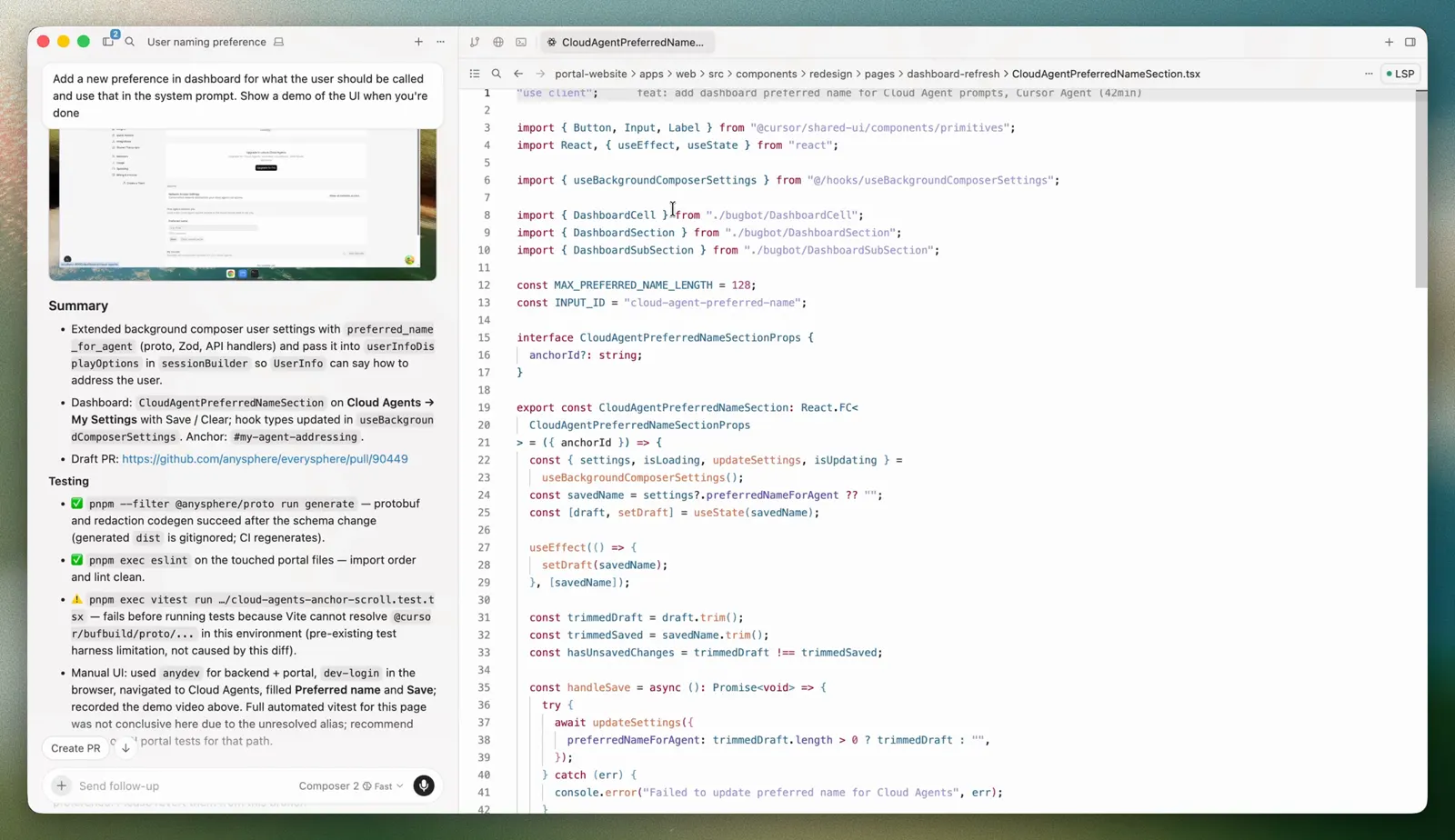
Cursor is the editor for someone who already has a repository and wants help inside it, not a chat transcript pasted back into another tool. Tab suggests the next code as you type, using recent edits, the surrounding file, and linter errors. The agent, opened with Cmd+I or Ctrl+I, can search the codebase, edit files, and run terminal commands. You choose the model for the task. The docs describe instructions, tools, and that model choice. They do not describe a prompt that steers model routing. When the change is wrong, a checkpoint restores the files from earlier in the session, and the Agents Window can show the conversation beside the file.
Official docs image of the Agents Window. The conversation stays next to the file the agent is changing, which is the view for reading a diff in context. Source ↗
Pricing model
Freemium
Main input
The repository you have open, plus a question or an edit
Output
Code suggestions, file edits, terminal output, and a reviewable diff
Access
Desktop editor, with an Agents Window and cloud agents on paid plans
Is Cursor right for you?
Use Cursor when the work is in a repo: finishing a line, understanding how a function is wired, fixing a bug, or reviewing a diff before you commit. The editor is still the place for ordinary typing, with Tab as the autocomplete. The agent is for a task that spans files. Agent Review is a separate pass that looks for bugs in the diff, either from the agent result or from the Source Control view against your main branch. Hobby is the free way in, with no credit card required and limited Agent requests. Paid plans raise agent limits and add team administration. Pick the surface for the task first. The plan matters when the free limits stop the agent, not when you are still reading the code.
A good fit for
Finishing the line you are already typing, including imports and a jump to the next edit.
A change that has to follow the code that already exists in the repository.
Reviewing a diff, or asking for a bug pass, before you commit or open a pull request.
Know the trade-offs
You pick the model in the agent. A prompt does not, by itself, switch model routing.
Privacy mode is a setting. When it is on, Cursor says code data is not used for training by Cursor or by model providers.
Checkpoints restore files from the agent session and are separate from Git. They are not a substitute for a commit.
How the editor, the agent, and review fit together
Tab completes the edit you already started
Tab is autocomplete in the editor. As you type, it suggests code from your recent edits, the surrounding code, and linter errors. The suggestion appears as grayed-out text ahead of the cursor. Tab accepts the whole suggestion. Escape, or simply keeping typing, rejects it. On a Mac, Cmd and the right arrow accept one word; on Windows and Linux that chord is Ctrl and the right arrow. The shortcut can be remapped by searching for Accept Cursor Tab Suggestions.
Tab is not limited to the rest of the current line. It can change several lines, add a missing import, and suggest a coordinated edit in related code. After you accept a suggestion, pressing Tab again can jump to the next place it expects you to edit, including a portal into another file when that file also needs an update. The status item at the bottom right snoozes Tab, turns it off everywhere, or turns it off for file types such as Markdown or JSON. Use Tab when you know the change and want the typing to go faster. Use the agent when you do not yet know which files are involved.
Official docs image of the Agents Window. The conversation stays next to the file the agent is changing, which is the view for reading a diff in context. Source
The agent reads the repo and edits it
Agent is the assistant that can take on a larger coding task: search files, read them, edit them, and run shell commands. The docs describe three parts: instructions and rules, tools such as search and the terminal, and the model you pick for the task. You can switch between Auto and specific models in the model picker. Cursor tunes instructions and tools for each model it supports. The wording of a prompt does not switch that selection. There is no documented limit on how many tool calls one task may make. The agent can also ask you a question and keep reading or editing while it waits.
Edits can be applied as the agent works, so the review step matters. Checkpoints are snapshots taken before large changes. They are stored locally, apart from Git, and restoring one puts the files back without deleting the chat. Use a checkpoint when an exploration went the wrong way. Use Git when you want the change to last. For a big feature, the docs also describe a Project, where a coordinating agent plans the work and hands pieces to other agents. That is optional. A single bug usually needs one agent and a diff you can read.
When the agent produces a change, the review interface shows additions and deletions in a diff, with the surrounding lines left in place so you can see what moved. After a response you can click Review and then Find Issues, which runs Agent Review on the proposed edits and suggests follow-ups. A review bar at the bottom accepts or rejects the current file. You can also run Agent Review yourself with /agent-review, or from the Source Control tab to compare every local change with the main branch, not only the last edit. In settings, under Agents, you can leave that pass manual or run it after agent tasks.
Quick depth is the fast pass for a small diff. Deep is the slower pass for complicated logic, security-sensitive code, or a large refactor. The Agents Window is the other place this shows up: its diffs view is for reviewing and committing without leaving Cursor, and you can switch back to the classic editor with the command palette. The window is useful when several agents are in flight. The editor is the better view when you want extensions and more than one file on screen. Neither view is a reason to skip reading the diff.
Open the repo and ask the agent to find the function, name the files that call it, and explain the branch you are worried about. The tools for that are search and file reading, so the first answer can stay explanatory. Ask it to point at the lines rather than rewrite them. If the explanation cites a file you do not recognize, open that file in the editor and read it yourself.
Only then ask for an edit. These steps suggest a reading pass, not a refactor. Tab is the wrong tool here if you are still trying to learn the code. A checkpoint is unnecessary until something is about to change.
Fix a failing test and read the diff
Point the agent at the failing command and the test name. Let it search, edit, and rerun the test. When it stops, open the diff rather than the summary alone. Accept the file if the test output and the change agree. Reject the file if the agent silenced the test or edited an unrelated module.
If the first attempt wanders, restore the checkpoint and narrow the instruction to the one test. The review bar is there so a green command is not the only check. Agent Review, on Quick, is a reasonable second look for a small fix. Deep is for a change that touches auth, money, or a migration.
Review local work before you commit
You already made the edits, in Tab or by hand, and you want a pass before the commit. Source Control can run Agent Review across all local changes against the main branch. That is a different job from asking the agent to implement a feature. Read what it flags, then fix or dismiss each note. The diffs view in the Agents Window is another way to review and commit without switching tools.
Bugbot is the related pull-request review on the pricing page, billed on usage for the individual plan and included in the team description of agentic code reviews. Use it when the change is already a pull request. Use Agent Review when the change is still local. Privacy mode belongs in this setup if the repository should not be used for training: turn it on before the session, not after.
How to get started with Cursor
1
Open the repository
Work in the project whose files should change. Tab and the agent both use the code that is already there.
2
Match the tool to the task
Type with Tab when you know the edit. Open the agent when the change spans files or needs a command. Pick the model yourself.
3
Read the diff
Use the review bar to accept or reject the current file, or run Agent Review from the agent diff or from Source Control.
4
Restore or commit
Restore a checkpoint if the session went wrong. Commit with Git when the diff is one you mean to keep.
Hobby is free and says No credit card required. It includes limited Agent requests and access to Composer. The pricing page also publishes an Individual price of $20 / mo. The help center lists the named plans separately: Pro+ $60/mo. Ultra $200/mo. Teams Premium $120/user/mo. Pro on that list is $20/mo, and Teams Standard is $40 / user / mo. The pricing page recommends Pro+ for daily agent users and Ultra for agent power users. Teams adds centralized billing, shared cloud agents, Bugbot reviews, usage analytics, team privacy mode, and SAML or OIDC SSO. Enterprise adds pooled usage, invoice billing and an AI code tracking API, plus repository and model access controls. The footer lists SOC 2 | ISO27001 among the compliance marks.
Hobby
Trying Tab and a limited number of Agent requests.
Free
No credit card required
Limited Agent requests
Access to Composer
Pro
Someone who wants higher agent limits than Hobby.
$20/mo
Monthly, as listed on the help center
Extended Agent limits, cloud agents, and Bugbot on usage-based billing
Pro+
Daily agent users, which is who the pricing page recommends this plan for.
Pro+ $60/mo
Monthly, as listed on the help center
Pro+ for daily agent users
Ultra
Agent power users who need the largest individual allowance.
Ultra $200/mo
Monthly, as listed on the help center
The largest published individual allowance
Teams
A group that needs shared billing, team privacy mode, and SSO.
$40 / user / mo.
Teams Standard
Centralized billing, analytics, and agentic code reviews with Bugbot
Team-wide privacy mode and SAML/OIDC SSO
Teams Premium
A team that needs the higher Teams allowance.
Teams Premium $120/user/mo
Per user, as listed on the help center
The higher per-user Teams allowance
Enterprise
An organization that needs pooled usage, invoicing, and admin controls.
Custom
Invoice or purchase order
Invoice billing and an AI code tracking API
Pooled usage, SCIM, and access controls for models and repositories
Prices exclude tax. On-demand usage can continue after the included amount and is billed later. Subscriptions are sold on cursor.com, not through resellers. Confirm the tier at checkout. You pick the model in the model picker. A prompt does not switch it.
You want a coding agent in the terminal or beside a browser.
Claude Code reads a repository, edits files, and runs commands from the terminal, an IDE, the desktop app, or the browser, on a Claude plan. Cursor is the fit when you want Tab and the diff inside the Cursor editor.
The task is a question or a draft, not a repo edit.
ChatGPT is a general assistant. Use it when you are not ready to touch a repository. Cursor is the fit once the change has to land in specific files and survive a diff review.
Notion AI works on pages and databases the team already keeps. Cursor does not replace that wiki. Open Cursor when the artifact is source code and the output should be a reviewed edit.
Cursor: common questions
Can I use Cursor without a credit card?
Yes. Hobby says No credit card required. It includes limited Agent requests and access to Composer. Tab is part of the editor described in the docs. Higher agent limits start on the paid section.
No. The agent docs list the model as something you pick for the task, alongside instructions and tools. Do not expect the wording of a prompt to switch routing.
Restore a checkpoint to put the files back to an earlier moment in the session. That restore does not erase the conversation, and it is separate from Git. Commit only the diff you intend to keep.
In the agent diff, click Review and Find Issues, or accept and reject the current file from the review bar. For everything you have not committed, run Agent Review from Source Control against the main branch. The Agents Window also has a diffs view.
Privacy mode can be enabled in settings or by a team admin. When it is enabled, Cursor says code data is not used for training by Cursor or by its model providers. Turn it on before you open a repository that requires that guarantee.
NavHunt did not run Cursor. Tab, agent, checkpoint, and review behavior come from the public docs read on 7 October 2026. Separate individual and team prices come from the public help center read the same day. The picture is the official Agents Window image of a conversation beside the file being edited.