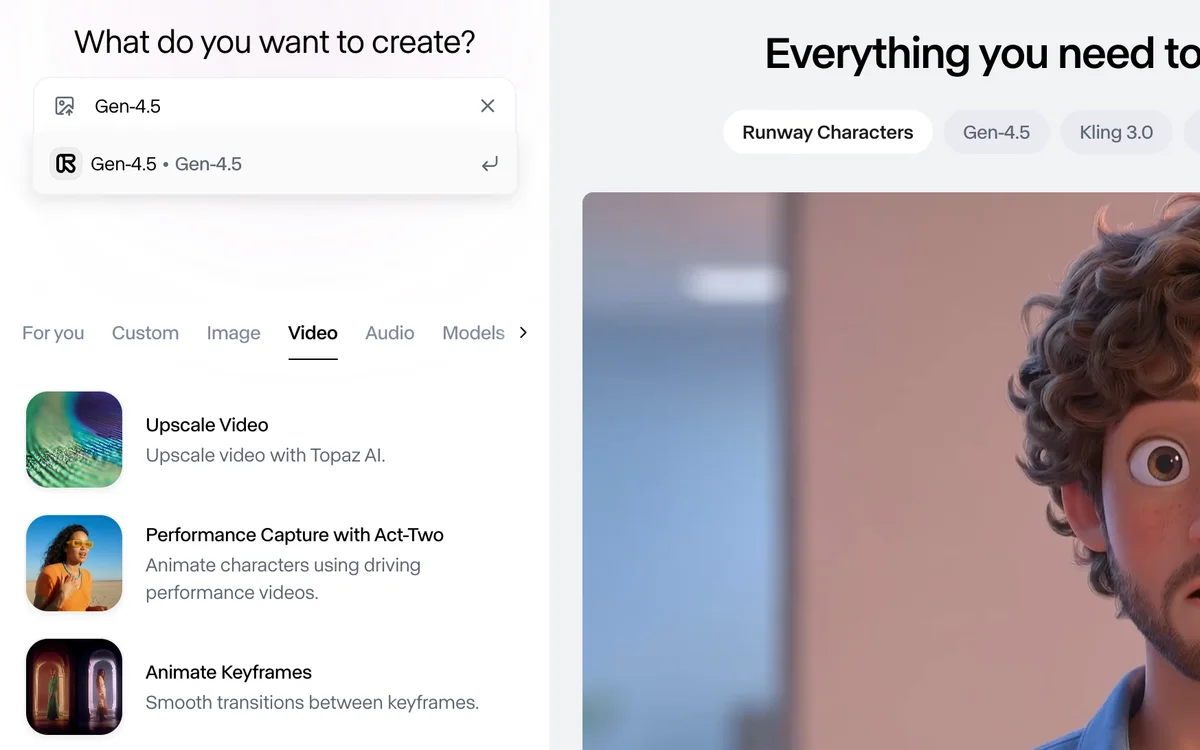
Runway is for someone who needs a moving image and does not have a crew on the day. The product page describes a creative suite that generates and edits video, images, and audio in one cloud workspace, with Gen-4.5 called out for motion quality, prompt adherence, and visual fidelity. The practical work is narrower than the model list: describe a shot, restage a still you already have, remove something from a clip, or change one frame and carry that change through the video. Credits are how generations are metered. Which models a free account can open is a separate question from how many credits it holds.
Official Gen-4.5 help image. The controls around the clip are a prompt, upscale, Act-Two, and keyframe animation. Source ↗
Pricing model
Freemium
Main input
A prompt, a still, or a clip you already have
Output
Generated or edited video, images, and audio
Access
Web app; model access depends on the plan
Is Runway right for you?
Use Runway when the job is a generated shot or a change to footage you already have, and when you can judge the result by watching it. Gen-4.5 is the frontier video model on the product page, and the help image shows the controls around a clip: a prompt, upscale, Act-Two, and keyframe animation. Aleph 2.0 is the edit that starts on one frame and applies to the rest of the video. Remove from Video, Reshoot Product, and Add Dialogue are separate tools for a cleanup, a product still, and a spoken line. Standard is the plan that states access to all AI video and image models. The free plan is a one-time credit balance and a selection of generative models. Pick the tool for the shot first. Annual billing is a discount you can choose at checkout, not a requirement.
A good fit for
Restaging a product photo or generating a short shot from a written description.
Removing an unwanted object from a clip, or pushing one frame's fix through the rest of the shot.
Trying a concept before you book a shoot, as long as you can review motion yourself.
Know the trade-offs
Free includes 125 one-time credits and a selection of generative creative models. Standard is the plan that states access to all AI video and image models.
Watch a few seconds before you upscale. A broken edge or a bad label gets worse at a higher resolution.
Annual billing is optional. The cards show a monthly price and a lower rate when you pay for the year.
What you can generate and what you can change
Official Gen-4.5 help image. The controls around the clip are a prompt, upscale, Act-Two, and keyframe animation. Source
Generate a shot from a description
Gen-4.5 is presented as frontier video generation, with the product page pointing at motion quality, prompt adherence, and visual fidelity. You write what the shot should do, rather than editing a timeline frame by frame. The help image puts the prompt next to the clip, so the description and the result sit in one view. Upscale raises the resolution of a take you already like. Act-Two is the performance control on that same image. Keyframe animation pins motion between frames.
Write the action, the camera move, and what must stay still. Generate a few seconds and watch the motion before you upscale. If the subject melts or the label breaks, change the prompt and try again at the same short duration. Standard is the plan that states access to all AI video and image models. The free plan includes a selection of generative creative models and 125 one-time credits. A credit balance does not open a model the plan does not include.
A lot of the suite is for footage and photos that already exist. Aleph 2.0 and Edit Studio are described as editing a frame and applying that edit to the rest of the video, which is the path when one moment is wrong and the surrounding shot should follow it. Remove from Video takes an object out with a prompt. Reshoot Product is for a product still: upload the photo and describe the new setting instead of booking another shoot. Add Dialogue types a line for a character to say. Upscale Video raises resolution in one click.
These are different jobs, and they should stay different. A product still does not need a dialogue pass. A boom in the corner of a filmed clip does not need a new generation of the whole scene. The product page also lists a Runway Agent that builds an end-to-end video from a conversation, which is a third way in: you talk through the piece instead of operating each tool yourself. Use that when you want a first assembly, then drop back to a single tool for the shot that is still wrong.
The homepage describes Runway Creative as an all-in-one cloud platform for generating and editing video, images, and related media, for individuals and for organizations. The same company also offers a developer platform and a robotics toolkit. Those are different products. A product still or a filmed clip belongs in the creative app.
The order of work stays the same whatever you subscribe to. Describe the shot, look at a short result, then decide whether the next step is a removal, a frame edit, a spoken line, or an upscale. Storage and project limits are plan terms. They do not tell you which tool fixes the shot.
You have a clean photo of the product and the campaign needs it on a different surface or in different light. Reshoot Product is the tool the product page names for that: upload the still and describe the setting. Keep the product's shape and label in the description so the generation has something to hold onto. Ask for one setup first, not a family of ads.
Watch the edges of the product and any text on the packaging before you upscale. If the still is right and only the background failed, describe the background again rather than regenerating the product. These steps suggest a test still, not a finished campaign. Credits and model access are on the pricing page; the decision here is whether the still is usable.
Take an unwanted object out of a clip you filmed
A real clip already has the performance you want, and something in the frame should not be there: a mic, a sign, a person at the edge. Remove from Video is the prompt-based removal, which is a different job from generating a new performance. Describe the object and where it sits. Work on a short span before you run the whole file.
Play the result at full speed and look for smears in the background that the object used to cover. If the hole is worse than the object, stop and keep the original. Upscale only after the removal holds. This is not the same task as restaging a still, and it does not require a new script.
Fix one frame and carry it through the shot
Sometimes a single frame shows the problem: a hand, a logo, a flicker. Aleph 2.0 is described as editing that frame and applying the edit to the rest of the video. That is the tool when the shot is otherwise right and you do not want a brand-new generation. Add Dialogue is the other localized change, for a line you type rather than a picture you repair.
Check the frames just after the edit, not only the frame you touched. If the applied change drifts, shorten the span instead of describing the whole story again. The Gen-4.5 help image is about generating and shaping a clip; this pass is about a change you already know you want.
How to get started with Runway
1
Name the job before you pick a model
Decide whether you are generating a new shot, restaging a still, removing an object, adding a line, or pushing one frame's edit through the clip.
2
Make a short test
Generate or edit a few seconds first. Judge motion, edges, and any text before you spend the same prompt on a longer duration.
3
Use one repair tool
If the take is close, switch to removal, Aleph, dialogue, or upscale. Do not regenerate the whole scene to fix one corner.
4
Keep the take that holds up
Watch the result at full speed. Upscale the take you will actually use, then look at the plan only if the model you need is not in the free selection.
Free is $0 and includes 125 one-time credits, 5GB of storage, and a selection of generative creative models to test concepts. It does not say that selection includes Gen-4.5. Standard shows $15 a month and a Standard annual rate of $12 /month, with the note that annual billing saves $36/year. Its allowance is described as 625 credits monthly = 52s of Gen-4.5, and the card says access to all AI video and image models. Gen-4.5 uses 12 credits per second of generated video. Pro shows $35 and a Pro annual rate of $28 /month, saving $84/year, with a larger allowance illustrated as 187s of Gen-4.5. Max shows $95 and a Max annual rate of $76 /month, saving $228/year, and is the card that says credits roll over one month. Annual is a discount on the card, not a requirement. Choose monthly or annual at checkout.
Free
Testing a concept with the models the free plan actually names.
$0
125 one-time credits
A selection of generative creative models to test concepts
5GB asset storage
Standard
Creators who need the plan that states access to all video and image models.
$12 / month annual, or $15 monthly
625 credits each month
Access to all AI video and image models
625 credits monthly = 52s of Gen-4.5
No watermarks, 4K upscaling, up to 3 projects
Pro
Heavier solo work, including parallel generations and a brand kit.
$28 / month annual, or $35 monthly
2250 credits each month
Access to all AI video and image models
More parallel generations, a brand kit, and a custom voice clone
Max
Heavy solo use when leftover credits need to last into the next month.
$76 / month annual, or $95 monthly
9500 credits each month, with one month of rollover
The largest published credit allowance
Credits roll over 1 month
The seconds of Gen-4.5 on Standard, Pro, and Max are the pricing page's own examples of what those credit allowances represent. They are not a statement that the free selection includes Gen-4.5. Tax and the amount at checkout can differ from the card. Confirm the current charge before you subscribe.
You want another short-form video generator to compare with a prompt.
Pika is a separate video generator with its own models and limits. Choose it when you are comparing prompt-to-clip tools. Runway is the fit when you also need frame edits, object removal, and product restaging in the same suite.
You are comparing another image-to-video generator.
Luma Dream Machine is a different generator, useful as a second opinion on a shot. Runway is the one to open when the next step is an edit to a clip you already have, not only a new generation.
The job is a still image, or you need a separate generation-credit balance.
Leonardo's documented path is image and video generation with a separate generation-credit balance. Runway is the closer fit when the work is a timed shot, a removal, or a frame edit inside a video suite.
Runway: common questions
Can I try Runway without paying?
Yes. Free includes 125 one-time credits and a selection of generative creative models to test concepts, plus 5GB of storage. That selection is not described as every model. Standard is the plan that states access to all AI video and image models.
Does a credit balance mean every model is available?
No. Credits are what you spend to generate. Gen-4.5 uses 12 credits per second, and Standard illustrates 625 credits as 52s of Gen-4.5. That example sits on the paid card. It does not open the model on the free selection.
The cards show both a monthly figure and a lower annual rate, including a Standard annual rate of $12 /month against $15. Annual is optional. Pick the billing period at checkout after a short test, not before you know the tool fits the shot.
Use a local edit. Remove from Video takes an object out. Aleph applies one frame's edit to the rest of the clip. Add Dialogue types a line. Upscale comes after the picture holds, not before.
The product page describes it as creating an end-to-end video from a conversation. Use it for a first assembly. Switch to a single tool when one shot, one object, or one line is the thing that is wrong.
NavHunt did not run Runway. The model descriptions and plan wording come from Runway's public product and pricing pages as reviewed on 6 October 2026. The picture is the official Gen-4.5 help image of the prompt, upscale, Act-Two, and keyframe controls.