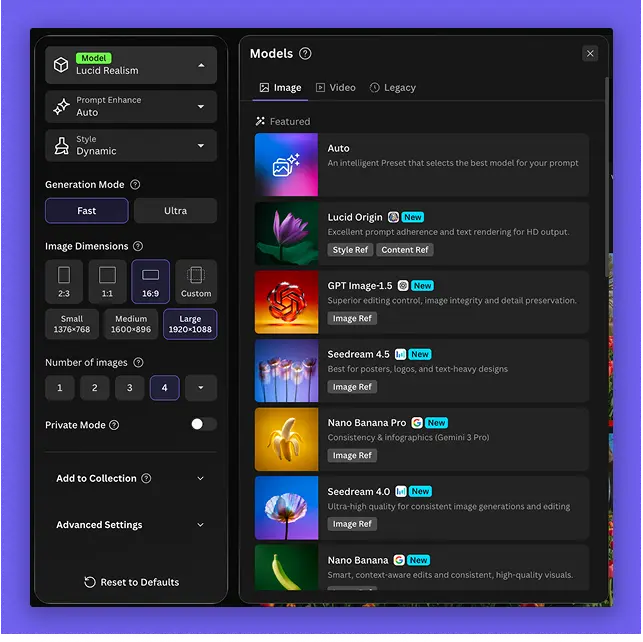
Leonardo AI is the studio for someone who needs an image or a short video and wants to choose the model before they generate. In the web app you set the model, choose image or video, pick a speed such as Fast or Ultra, and set the dimensions. Those controls decide what the next generation will be. The docs then show a second path: create an API key and generate from your own application. API access is separate from free or web app subscriptions. For the current price of a web subscription, use checkout on the Leonardo site.
Official studio image. These controls pick the model, whether you are making an image or a video, the speed, and the dimensions of the next generation. Source ↗
Pricing model
Freemium
Main input
A prompt plus model, size, and speed settings
Output
An image or a video from the studio or the API
Access
Web app, plus an API key with its own credit balance
Is Leonardo AI right for you?
Use the web studio when you are still deciding on a look. Change one setting at a time, model or size or speed, and generate a single image so you can see what that setting did. Use the API when the same kind of generation has to run inside a product you are building. You buy API credits on a Pay-As-You-Go basis, with no monthly fee, and that balance is not the web subscription. The pricing calculator in the docs previews what a request will cost from the model and the options you select. It is a planning screen for the API. The studio panel is where you choose the model, the output, the speed, and the dimensions. If you want a web subscription rather than API credit, confirm the live price at checkout on the Leonardo site.
A good fit for
Trying a model, a size, and a speed in the web studio before you commit to a batch.
Generating a first image from an API key once the look is chosen.
Estimating an API request in the pricing calculator before the call runs.
Know the trade-offs
API credits are separate from free or web app subscriptions. Paying for one does not fill the other.
The API has no monthly fee. A web subscription, if you use one, is a different purchase.
When the API balance hits zero, requests pause until you add credit. The balance itself does not expire.
Studio settings, a first image, and the API
Official studio image. These controls pick the model, whether you are making an image or a video, the speed, and the dimensions of the next generation. Source
Set the model, the output, and the size
The web studio panel is where a generation starts. You choose a model, switch between image and video, pick a speed such as Fast or Ultra, and set the dimensions. Each of those changes the result in a different way. The model is the look. Image versus video is what you will get back. Speed trades waiting time against the heavier setting. Dimensions decide the frame. Change one of them, generate once, and compare. Changing all four and then judging a single picture makes it impossible to see which knob mattered.
The docs also describe Get API Code, which exports a web-app image or video generation as code you can run. That is the bridge when a picture you liked in the studio should be repeated by an application. It does not move money between the web account and the API account. You still create a key and pay for API usage separately. Use the studio to find the settings. Use the export when those settings are the ones you want a program to repeat.
The getting-started guide walks from creating an API key to generating your first images. You sign in to the web app, open API Access, buy API credit, and create a key with a name you will recognize later, such as the name of the service that will call it. An optional webhook can receive a callback when a job finishes. The key is the credential. Treat it like one. A key named for a production service should not be pasted into a notebook you share.
The first call should be one image, with the model and the size you already liked in the studio. If the API result does not match the studio result, compare the model name and the dimensions before you blame the prompt. The guide’s point is that sequence: key, credit, one generation. A batch comes after that image looks right. Audio, music, and background removal exist in the same docs as further guides. They are additional jobs, not steps you must run to get a still image.
The pricing calculator is a docs tool for the API. You preview the cost of a generation from the model and the features you select, and you can see what happens when resolution or the number of outputs changes. Use it when you are about to run the same request many times and you want a number before the balance moves. It answers a planning question. It does not choose the model for you, and it is not the studio panel where you set Fast or Ultra.
Keep the two screens apart while you work. In the studio, judge the picture. In the calculator, judge the request you are about to automate. If the preview is higher than you expected, lower the resolution or the count and preview again before you change the prompt that was already working. The calculator’s number is an estimate from the options you entered. The balance on the account is what actually remains after a real call.
Pick a model and a square or a landscape size. Generate one image. If the subject is right and the framing is wrong, change only the dimensions and generate again. If the framing is right and the look is wrong, change only the model. Fast is enough while you are still searching. Ultra is the setting to try once the composition is the one you want.
These steps suggest a studio session. They do not need an API key. Stop when you have one image you would actually use, and write down the model and the size. That note is what the later API call has to match.
Repeat that image from your own app
Create an API key, buy API credit, and send one request with the model and the size from the studio. Use Get API Code if you want the web generation turned into a request you can paste into the app. Compare the returned image with the studio image before you loop the call.
This is an integration task. It spends the API balance, which is separate from whatever web subscription you may have. If the call is rejected because the balance is empty, add credit. Do not keep retrying the same request.
Estimate a batch before you run it
Open the pricing calculator, select the model, and set the resolution and the output count you expect to run. Read the preview. If you need ten images, put ten in, not one. Adjust the size if the preview is more than the batch is worth, then run a single live image to confirm the look still holds at that size.
These steps suggest a planning pass for the API. They are not a substitute for looking at the picture, and they do not tell you the price of a web-app subscription. That subscription is a different product from this balance.
How to get started with Leonardo AI
1
Choose one setting to change
Model, image or video, speed, or dimensions. Generate once so you can see what that setting did.
2
Keep the image that works
Write down the model and the size. Ignore the rejected tries instead of averaging them.
3
Open the API only to repeat it
Create a key, add API credit, and send one matching request. API credit is separate from the web app.
4
Preview a batch in the calculator
Check resolution and output count before you loop the call. Then confirm with one live image at those settings.
API access is separate from free or web app subscriptions. The API is priced on a Pay-As-You-Go basis, with no upfront commitment or monthly fees. You buy credits in the web app under API Access. The account balance does not expire. If the balance reaches zero, API requests pause until additional credit is added. The docs’ example of an automatic top-up is a threshold when the balance drops below $50 and then adding a set amount such as $100. The pricing calculator previews a request from the model, the resolution, and the output count. For the current web-app subscription, use checkout on the Leonardo site.
Free
Trying generations in the studio before any API spend.
Web app access
Separate from API credit
A web app subscription is a different product from API credit
Pay-As-You-Go
An application that should pay for the generations it actually runs.
No monthly fee
Pay-As-You-Go basis
No upfront commitment or monthly fees
The account balance does not expire, and requests pause at a zero balance
A studio setting is not a subscription price, and a calculator preview is an estimate for an API request. API credit is its own balance. A top-up can be set to fire when the balance drops below $50. Confirm the live web-app price at checkout if you need a subscription rather than API credit.
You want another image generator, especially where rendered text matters.
Ideogram is a separate image generator. Leonardo is the fit when you also want the studio controls for model, speed, and size, and a documented API key with its own balance.
Runway is a video suite for generating a shot and editing a clip. Leonardo’s documented path here is image and video generation plus an API. Use Runway when the next step is removal or a frame edit inside a video.
Gamma builds presentations. Leonardo generates the image or video you might place in one. Make the picture in Leonardo only if the slide actually needs an original image.
Leonardo AI: common questions
Can I generate without buying API credits?
The docs treat the web app, including a free or paid web subscription, as separate from API credit. You can work in the studio without an API key. Calling the API requires a key and API credit.
No. The API is priced on a Pay-As-You-Go basis, with no upfront commitment or monthly fees. You pay for the credit you add. The account balance does not expire.
Requests pause until you add credit. A top-up can be configured to add credit when the balance drops below $50. The docs use $100 as an example of the amount to add.
The model, the choice of image or video, the speed, and the dimensions. Those settings shape the next generation. The pricing calculator is a different screen, used to preview what an API request will cost.
Use checkout on the Leonardo site. The current web-app price is whatever that checkout shows. API credit is a different balance and does not answer the question.
NavHunt did not run Leonardo. Studio settings come from the official studio image and the getting-started guide. API pricing comes from the public API docs, reviewed on 6 October 2026. For a web-app subscription, use checkout on the Leonardo site.