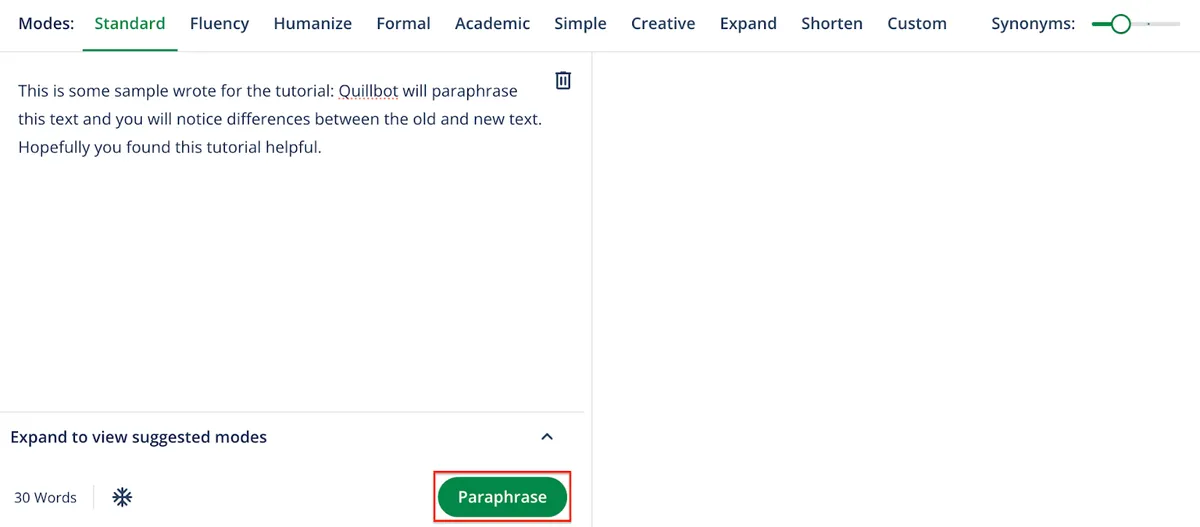
Quillbot’s Paraphraser rewrites your text in new ways while keeping the original meaning. Enter copy on the left, choose a mode, click Paraphrase, and review highlighted changes on the right. Standard (free) Default mode and Fluency stay free; Humanizer, Formal, Academic, Simple, Creative, Expand, Shorten, and Custom require Premium. Help pages cover premium subscription, billing and payment but do not list dollar amounts here.
QuillBot Help Center paraphraser with Standard selected, mode list, synonyms slider, and the Paraphrase button. Source: https://help.quillbot.com/hc/en-us/articles/35854222679319-How-to-use-the-Quillbot-Paraphraser. Source ↗
Pricing model
Freemium
Main input
Typed or pasted text, or DOCX/TXT upload
Output
Rewritten text with highlighted changes
Access
Web Paraphraser via Quillbot; help covers extensions and apps
Is Quillbot right for you?
Use Quillbot when you already have draft text and need controlled rewrites, not blank-page generation. Free work centers on Standard (free) Default mode and Fluency. Premium unlocks Humanizer, Formal, Academic, Simple, Creative, Expand, Shorten, and Custom. Type, paste, or Upload a document (such as a DOCX or TXT file), then Rephrase until the output fits. Grammar Checker’s Recommendation feature suggests improvements for grammar, spelling, and punctuation—separate from Paraphraser modes. Skip Quillbot if you need a published dollar price here, every mode for free, or long copy from a brief. Compare Anyword, Cohesive, or Copy.ai when scoring or campaign workflows matter more than paraphrase modes.
A good fit for
Writers who already have a draft and want clearer or less repetitive wording
Students and professionals who need Formal or Academic tone on existing paragraphs
Editors who want Expand or Shorten to hit length targets without starting over
Know the trade-offs
Most specialized modes are Premium; free users are limited to Standard and Fluency
Help Center billing articles discuss premium subscription topics but do not list public dollar prices here
Creative mode may slightly change meaning, so review bold rewrites carefully
What Quillbot’s Paraphraser actually does
QuillBot Help Center paraphraser with Standard selected, mode list, synonyms slider, and the Paraphrase button. Source: https://help.quillbot.com/hc/en-us/articles/35854222679319-How-to-use-the-Quillbot-Paraphraser. Source
Mode-based paraphrasing with free and Premium options
Modes are settings in the Quillbot Paraphraser that adjust how the AI rewrites your text. Standard (free) Default mode balances rewriting with meaning, and Fluency (free) fixes grammar with fewer synonym swaps. Premium modes include Humanizer for less robotic flow, Formal and Academic for professional or scholarly tone, Simple for easier reading, Creative for bold changes that may slightly shift meaning, Expand and Shorten for word-count goals, and Custom when you type a guiding word such as casual or friendly.
Use the mode selector bar above the text boxes so the active choice appears green and underlined before you run Paraphrase. Free accounts stay on Standard and Fluency; Humanizer through Custom require Premium. Treat the mode list as rewrite controls, not a price sheet.
Open the Paraphraser, then type into the left-hand box, paste existing copy, or Upload a document (such as a DOCX or TXT file) to paraphrase. Select a preferred mode such as Standard, Fluency, or Formal, click Paraphrase, and wait while the AI processes the input. Rewritten text appears in the right-hand box with different words or phrases highlighted so you can see what changed.
If the first pass misses the mark, click Rephrase to generate another variation and repeat until the version works. When you are done, copy the text or use Export to download the paraphrased content. The flow improves clarity on writing you already have—not inventing a full article from a single keyword.
Clarify a rough draft without changing the core claim
Paste a dense paragraph into the left box, keep Standard or Fluency selected, and run Paraphrase so the right panel shows a clearer version with highlighted swaps. Rephrase if needed, then copy or export the line you want to keep.
This path suits blog posts, emails, and reports where the facts are fixed and you only need cleaner wording. Free modes cover that job; switch to Premium Formal or Simple only when tone demands it. Review Creative carefully if you later suggest a bolder rewrite, because that mode may slightly change meaning.
Match academic tone or length on existing copy
When a draft already states the argument, open Formal or Academic under Premium and paraphrase the same source text. Formal targets professional voice; Academic leans scholarly for essays and research papers. Expand and Shorten adjust word count while keeping meaning—both Premium.
Students and analysts can suggest Humanizer after an AI draft so the prose sounds less robotic, then finish with Formal for workplace polish. Free users stay limited to Standard and Fluency, so confirm mode access before a deadline.
How to get started with Quillbot
1
Open the Paraphraser and add your source text
Go to the Quillbot Paraphraser. Type into the left-hand box, paste existing copy, or upload a DOCX or TXT file.
2
Select a mode and click Paraphrase
Use the mode selector bar to pick Standard, Fluency, or a Premium mode such as Formal or Humanizer. Click Paraphrase and wait for the AI to process the text.
3
Review highlights and rephrase if needed
Read the rewritten text in the right-hand box. Highlighted words show what changed. Click Rephrase to generate another variation until the result fits your goal.
4
Copy or export the final version
Copy the accepted text or use Export to download the paraphrased content, then paste it into your document.
Account, Subscription & Billing covers premium subscription, billing and payment, including Premium price and refund articles, but the available help pages do not publish public dollar prices. Mode docs mark Standard and Fluency as free and other listed modes as Premium. Plan prices below are Not published for that reason.
Free
Users who only need Standard or Fluency paraphrasing on existing text
Not published
Not published
Standard (free) mode for balanced rewrites
Fluency (free) mode for grammar-focused, lighter changes
Type, paste, or upload DOCX/TXT into the Paraphraser
Premium
Writers who need Humanizer, Formal, Academic, Simple, Creative, Expand, Shorten, or Custom
Not published
Subscription (details in Help Center billing articles)
Humanizer, Formal, Academic, Simple, and Creative modes
Expand and Shorten for length control
Custom mode with a guiding style word
Access tied to premium subscription per Account & Billing help
Confirm Premium pricing on Quillbot’s billing help before you pay. The pages used here did not include a usable public pricing page, and mode names are not dollar amounts.
You need performance-oriented marketing copy with scoring rather than paraphrase modes
Anyword focuses on generating and scoring marketing messages for campaigns, while Quillbot’s Paraphraser rewrites text you already wrote through free Standard/Fluency and Premium tone or length modes. Anyword fits conversion messaging; Quillbot fits controlled paraphrase of finished drafts.
You want a broader AI document workspace beyond paraphrase-only workflows
Cohesive is a multi-format AI writing workspace for longer drafts and templates. Quillbot is strongest when you paste existing prose into the Paraphraser and use modes such as Fluency or Academic. Cohesive fits blank-page structure; Quillbot fits mode-based rewrites.
Your team needs go-to-market workflows and chat-style generation more than paraphrase modes
Copy.ai emphasizes GTM workflows and generative assistants for campaigns and sales copy. Quillbot stresses rewriting existing text, free versus Premium modes, and export after rephrase loops. Copy.ai fits pipeline content systems; Quillbot fits controlled paraphrase of a finished draft.
Quillbot: common questions
What does Quillbot’s Paraphraser do?
The Quillbot Paraphraser is an AI-powered tool that rewrites your text in new ways while keeping the original meaning. It helps improve clarity and produce fresh versions of writing you already have.
Help Center mode docs list Standard (free) and Fluency (free). Other listed modes such as Humanizer, Formal, Academic, Simple, Creative, Expand, Shorten, and Custom are marked Premium.
Open the Paraphraser, enter text by typing, pasting, or uploading a DOCX or TXT file, select a mode, and click Paraphrase. Review the right-hand result, click Rephrase if needed, then copy or export.
In Grammar Checker help, the Recommendation feature suggests improvements for grammar, spelling, and punctuation errors. It is a premium feature that can flag passive voice, wordy sentences, and complex phrasing. It is separate from Paraphraser modes.
Where can I learn about Premium subscription and billing?
Account, Subscription & Billing covers account access, premium subscription, billing and payment, refunds, and cancellation. Those pages discuss pricing topics but the material here does not include public dollar amounts.
NavHunt did not run Quillbot. Mode names and workflow limits come from public Help Center articles on the Paraphraser, modes, Recommendation, and Account, Subscription & Billing, reviewed on 6 October 2026. The marketing homepage did not return a usable article, and those help articles do not publish dollar prices. Confirm Premium pricing on Quillbot’s billing help before you pay.