Gamma turns a topic, written outline or existing file into a visual first draft. Its card-based workspace combines writing, layouts and sharing, with presentations, documents and lightweight web pages in the same tool.
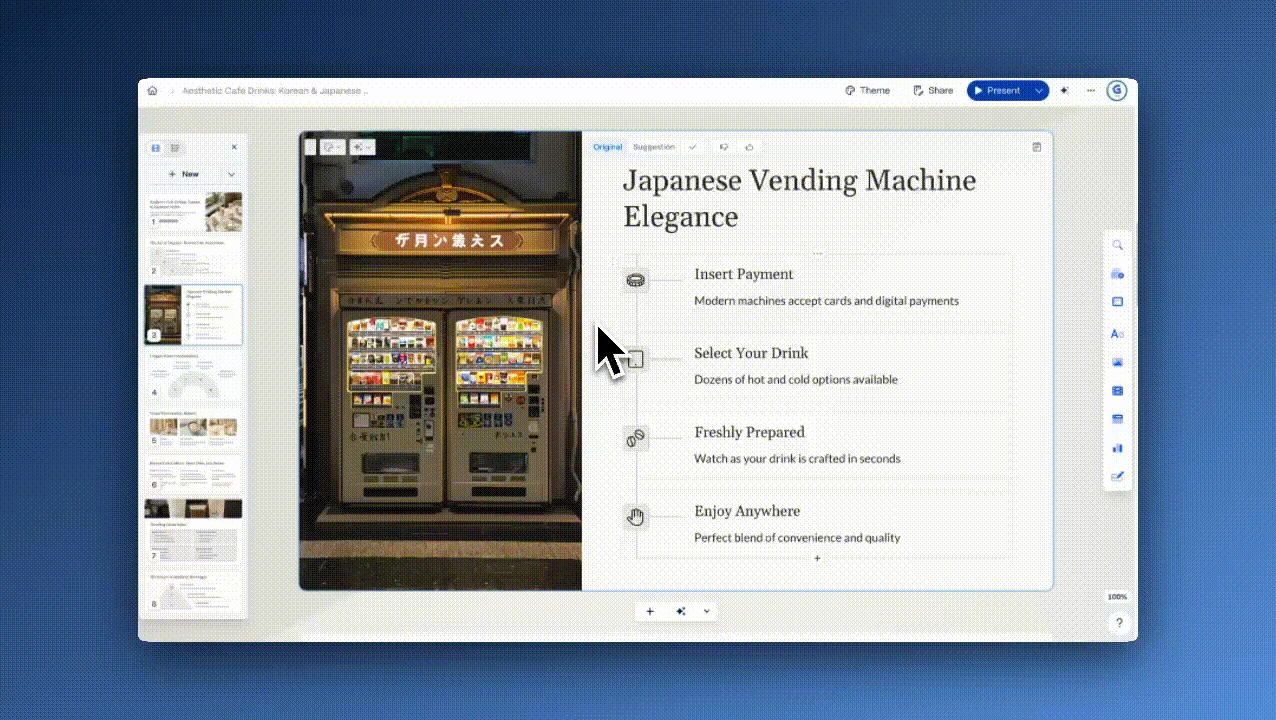
The card editor in Gamma’s official creation walkthrough. Interface details may vary by version. Source ↗
Pricing model
Freemium
Main input
Prompt, outline or file
Output
Deck, document, web page
Access
Account required
Is Gamma right for you?
Gamma suits proposals, lessons and team updates where you have the material but need a layout. You can edit the generated cards and send a web link without moving into another presentation app. A strict corporate PowerPoint template is a less straightforward fit: exported slides do not contain slide masters, and Google Slides can replace the fonts. For those jobs, allow time for finishing in the destination editor.
A good fit for
Turning prepared notes into a presentation you can keep editing.
Sharing a visual proposal as a web link or an exported file.
Trying an AI slide workflow before choosing a paid plan.
Know the trade-offs
AI generation and editing consume credits; Free credits do not refresh.
Free PDF and PPTX exports carry Gamma branding.
Exported slides do not include PowerPoint slide masters.
Create, edit and share a Gamma presentation
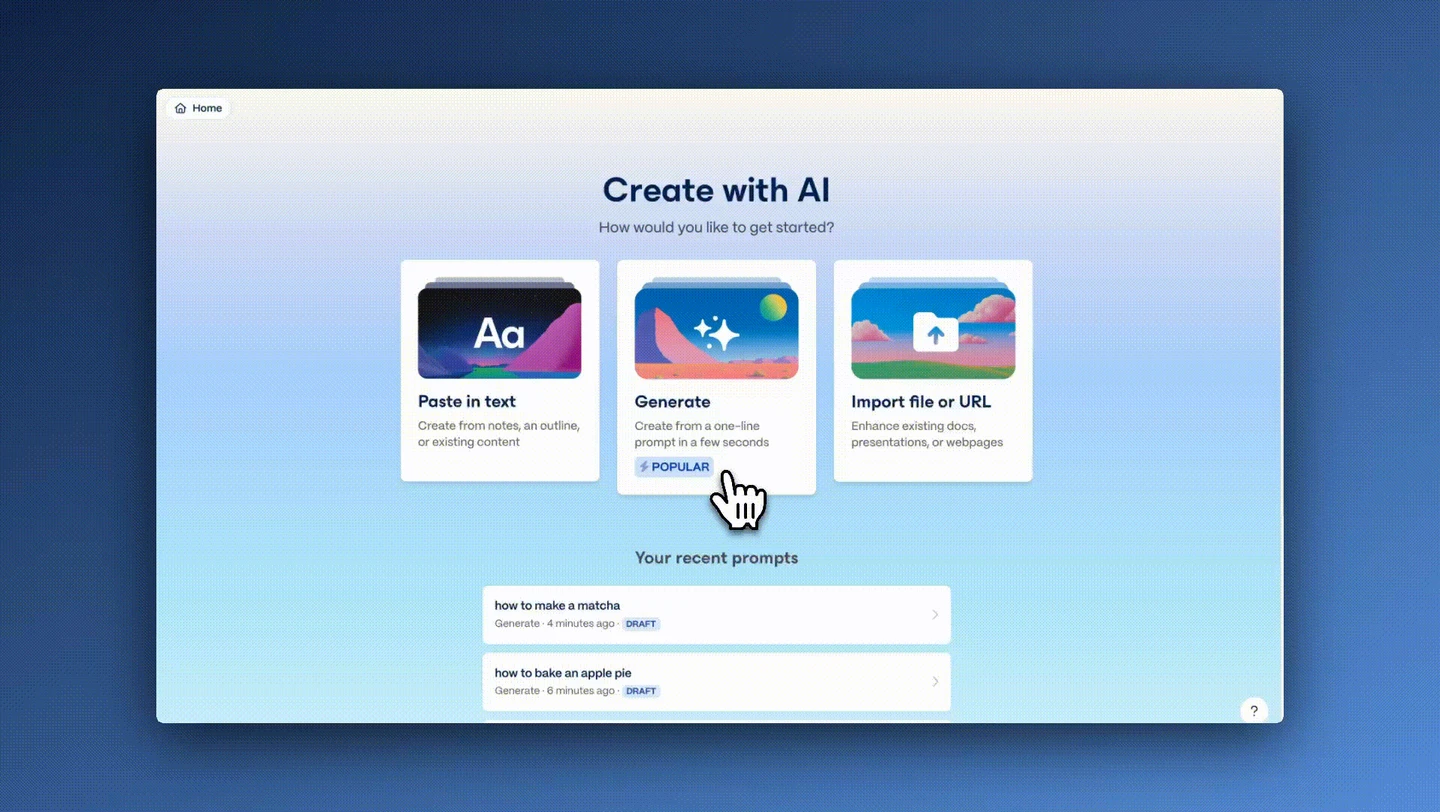
The starting options in Gamma’s official creation demo: paste text, generate from a topic, or import a file. Source
Start with the material you already have
Generate starts a draft from a topic. Paste is useful when you already have the wording, such as a project outline or speaker notes. Import brings an existing file into the editor. Choosing the right route saves you from asking the AI to invent material you have already written.
For example, a finished proposal belongs in Paste or Import; a topic such as ‘a beginner’s introduction to composting’ belongs in Generate. Gamma’s import options let you preserve, condense or expand the supplied material. Preserve is the useful choice when wording has already been approved.
The newer importer accepts PowerPoint, Word and PDF files, and can retain an imported deck’s design or restyle it. This differs from the classic, text-only import flow. If you are following an older tutorial, the import screen and the amount of formatting carried across may differ.
The card editor in Gamma’s official creation walkthrough. Interface details may vary by version. Source
Shape the story, then tune the design
A Gamma presentation is made of editable cards. After generation, you can rewrite the text, rearrange the content and replace images. This matters when the first draft has the right structure but gives too much space to an introduction or too little to the decision you want your audience to make.
Themes set colors, fonts and card styling across the file. You can adjust a theme for one presentation without changing other documents, then save it to the workspace for reuse. For recurring client work, that means keeping a recognizable visual style while changing the content of each proposal.
Manual editing and AI editing are separate choices. Changing the text yourself does not require another generated draft; AI actions consume credits. Use the generated structure as a starting point, then spend the remaining effort on the slides that carry your argument, evidence or recommendation.
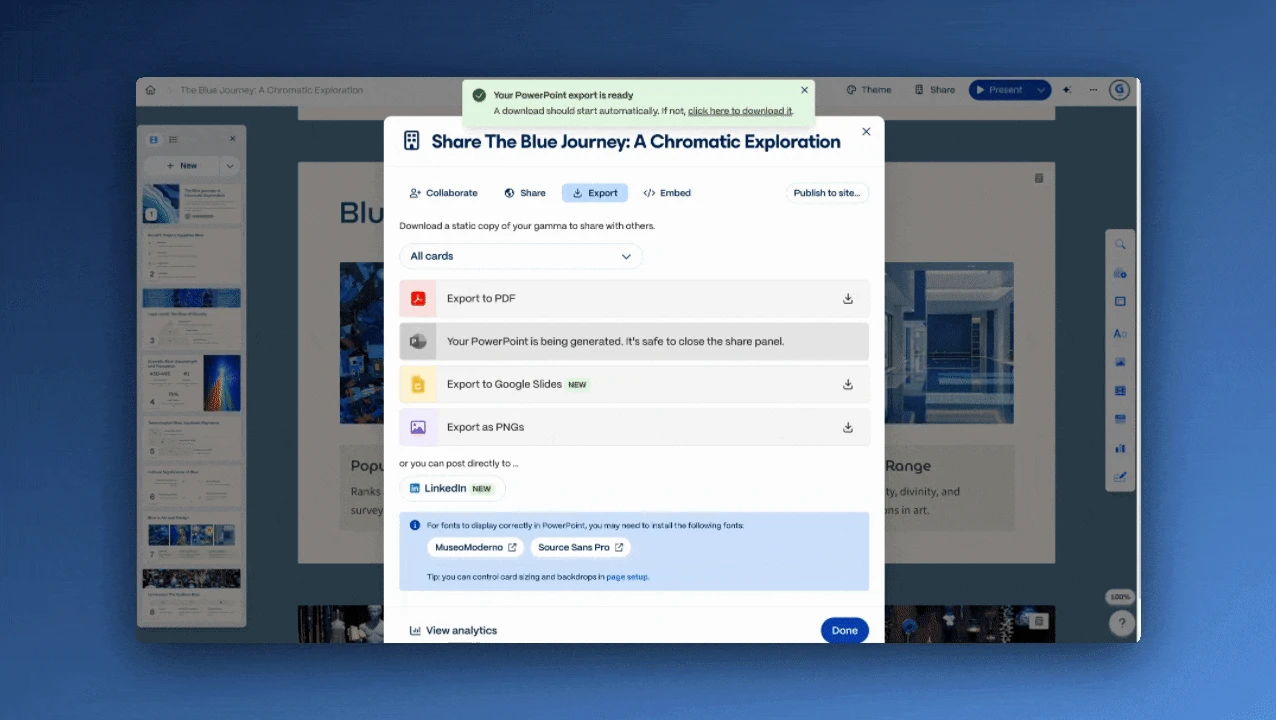
Gamma’s export dialog offers downloadable files alongside link sharing. Source
Choose how your audience receives it
Send a Gamma link when the audience will view the presentation online. Export a PDF when they need a fixed document, PNG for slide images, or PowerPoint when they need to edit the deck. Google Slides takes an extra step: export a PPTX, then upload it there. Gamma does not export directly to Word.
The formats have different tradeoffs. A PDF preserves a static version, so interactive elements do not remain interactive. PowerPoint exports keep editable content, including tables, but do not include slide masters. Google Slides ignores embedded PowerPoint fonts and may substitute its own; some visual effects also simplify during export.
For a client who insists on a company PowerPoint template, try exporting a representative slide with your fonts and tables before building the rest. If the recipient only needs to read and comment on the idea, a shared link avoids that conversion step.
Paste the agreed scope, budget, timeline and deliverables, then organize the deck around the client’s decision: the problem, your proposed work, the cost and the next step. Keep contractual wording intact instead of asking Gamma to rewrite it.
A useful brief might be: ‘Create a six-card proposal for a website redesign. Use the supplied milestones and prices exactly. End with the approval we need from the client.’ Add your portfolio images and brand theme, then share a link for the discussion or a PDF for the client’s records. This is a suggested workflow, not a proposal tested by NavHunt.
Team update
Turn a weekly status note into a short meeting deck: what changed, what is blocked and which decisions need an owner. A repeated structure makes it easier for colleagues to spot the new information each week. Save the theme once and reuse it for subsequent updates.
Keep a detailed task list in your project tracker and bring only the changes that matter into the presentation. A milestone table or a chart from your report is usually more useful than another decorative image. End with named decisions and deadlines so the deck supports the meeting instead of repeating every item in the notes.
Workshop or lesson
Start with what learners should be able to do by the end, then supply an explanation, a worked example and a short exercise. Ask for separate cards for each stage. That gives you a teaching sequence to edit, rather than a long explanation spread arbitrarily across slides.
Replace generic illustrations with diagrams or screenshots that explain the actual task. Leave an exercise prompt on screen while participants work, and export a PDF if they need a handout afterward. The presentation can organize your material; selecting suitable examples and judging whether the lesson fits the audience remain the instructor’s work.
How to get started with Gamma
1
Choose a starting point
Create an account and choose the format. Pick Generate, Paste or Import based on how much material you already have.
2
Review the draft
Read the outline before generating the full presentation. Put the main decision or lesson first and remove sections your audience does not need.
3
Refine the cards
Edit the content, change layouts and replace images. Review the credit cost shown before using additional AI actions.
4
Share or export
Share a link or export a short sample. Open it in the recipient’s app and check fonts, tables and branding.
USD per seat. Paid prices below are monthly equivalents with annual billing, checked on 28 September 2026. Taxes may apply. Month-to-month prices are not shown here.
Free
Try the core workflow
$0
No paid subscription
Up to 10 slides per prompt
Non-refreshing AI credits
PDF / PPTX exports with Gamma branding
Plus
Create without the Gamma badge
$9
/ month · $108 billed yearly
Up to 100 slides per prompt
1,000 monthly credits
Remove branding on paid-workspace exports
Pro
Brand control and connected workflows
$18
/ month · $216 billed yearly
4,000 monthly credits
Custom branding and detailed analytics
API access and up to 10 custom domains
New Free accounts receive 400 credits, which do not refill on a monthly schedule. Paid-plan credits renew monthly, including on annual subscriptions. Generation and AI editing both spend credits, with the cost depending on the action and model; manual editing remains available when credits run out. Gamma also offers Ultra and business plans. The plan features and credit rules were reviewed on 6 October 2026; the dollar amounts above remain the dated annual-billing snapshot, so confirm the current checkout price.
Your deck is one part of a broader design workflow.
Canva combines AI presentation drafts with a drag-and-drop editor and tools for social graphics, video and other formats. Compare it when those neighboring design tasks matter.
Beautiful.ai centers its presentation workflow on Smart Slides and automatic formatting. Compare how its layout system fits your deck before choosing between the two.
Pitch positions itself as a collaborative AI presentation workspace. Review its team editing and sharing workflow if multiple people will own the deck after the first draft.
Gamma: common questions
Is Gamma free, or only a free trial?
Gamma has an ongoing Free plan, with a one-time allocation of AI credits. Running out of those credits limits further AI generation and editing; it does not turn the product into a paid-only app. You can still manually edit existing work. Free exports carry Gamma branding, and generation is limited to 10 slides per prompt.
Yes. Gamma’s official getting-started flow asks you to create an account or sign in before creating content. Viewing a shared presentation is a separate activity from creating one; the ability to open a particular link depends on the owner’s sharing settings.
Yes. Gamma supports PowerPoint import and PPTX export. For Google Slides, the export help article describes exporting a PowerPoint file and uploading it to Google Slides. Inspect a sample in your destination app, especially when your deck relies on particular fonts or an existing corporate slide template.
Do not assume exact parity. Gamma documents format-specific differences, including static PDF output, absent slide masters and font substitution in Google Slides. Some visual effects can also fall back to simpler styles. Choose a live link when web presentation is appropriate, and check exported files before delivery.
Plus is the relevant step when you need unbranded exports or a monthly supply of generation credits. The paid workspace must be active when you export to remove the badge. Pro adds API access, custom domains and detailed analytics; those are useful for publishing or connected workflows, but unnecessary for a simple deck you will send as a PDF. Annual billing commits you for a year even though prices are displayed as monthly equivalents.
Are these screenshots and results tested by NavHunt?
The images are stills from Gamma’s official help-center demonstrations. This profile is based on official documentation and a dated pricing capture. NavHunt has not created a deck, benchmarked generation speed or tested paid features for this profile. The sample use cases are suggested workflows, not claimed test results.
Creation, import, theme, export and credit documentation reviewed on 6 October 2026. Dollar prices retain the 28 September 2026 annual-billing snapshot. Images come from Gamma’s official demonstrations. NavHunt has not tested generation speed or paid features; the scenarios above are suggestions based on documented capabilities.